
Leagues
Getting Started For Organisers
Your first hour running a league on S7 Darts. You set it up once in the app, your players join with a code, and results go into the table by themselves.
You Need
The S7 Darts app on your phone, and the email address you applied with.
Handy To Have
Your players’ names and divisions, in a spreadsheet if you have one.
Time
About an hour to set up. Players take two minutes each to join.
Apply For Your League
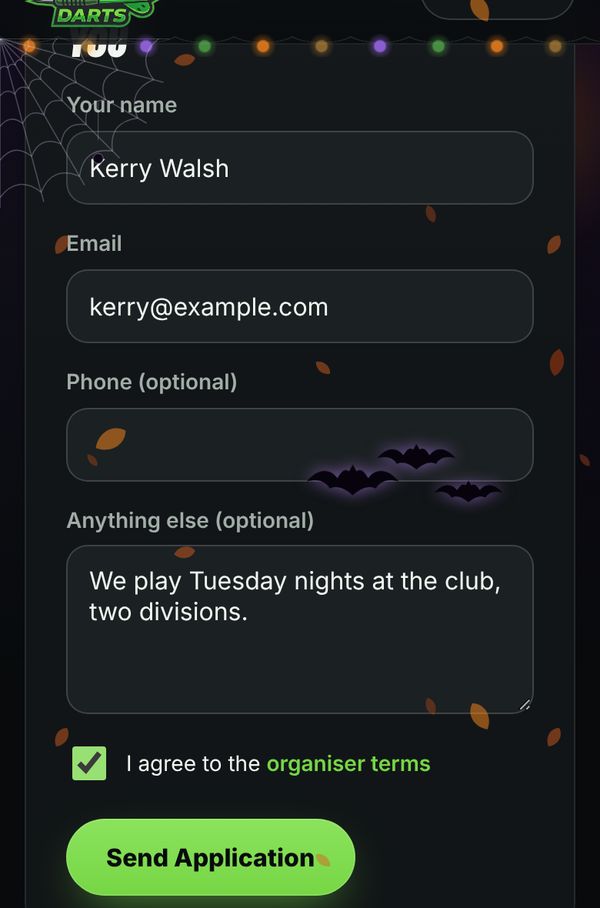
On this website, open Start A League. Tell us your league’s name, roughly how many players, and how to reach you. We read every application and email you when it’s approved.
Sign In With Your Email
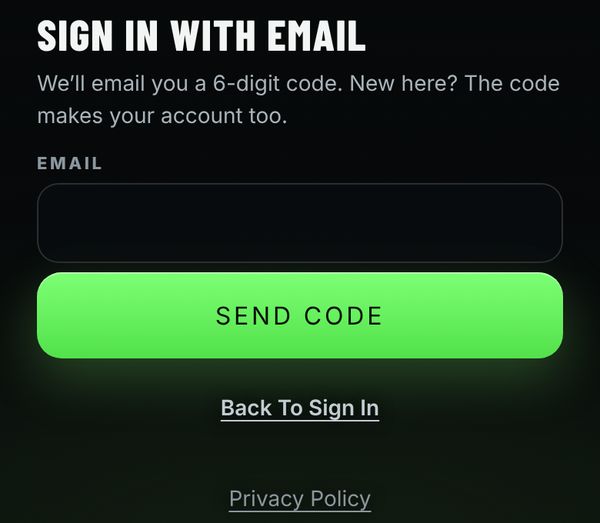
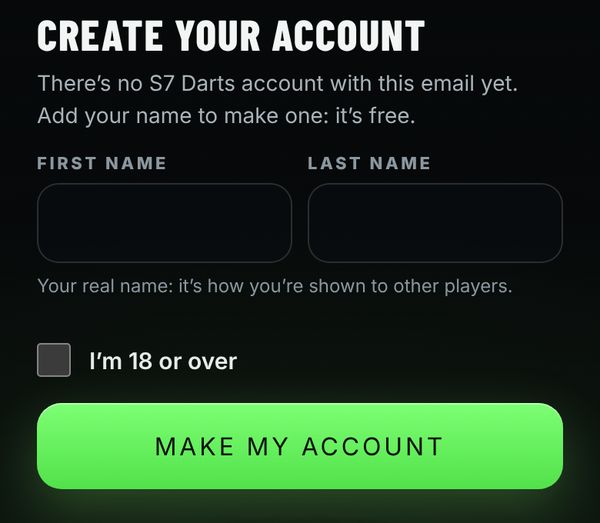
Open the app and tap Continue With Email. Use the same email you applied with. Type the 6-digit code we email you, add your real name and tick that you’re 18 or over.
That’s it: the app knows you run the league.
Worth knowing: Ignore the username and password boxes at the top of the sign-in screen. Continue With Email is the way in.
Open Manage League
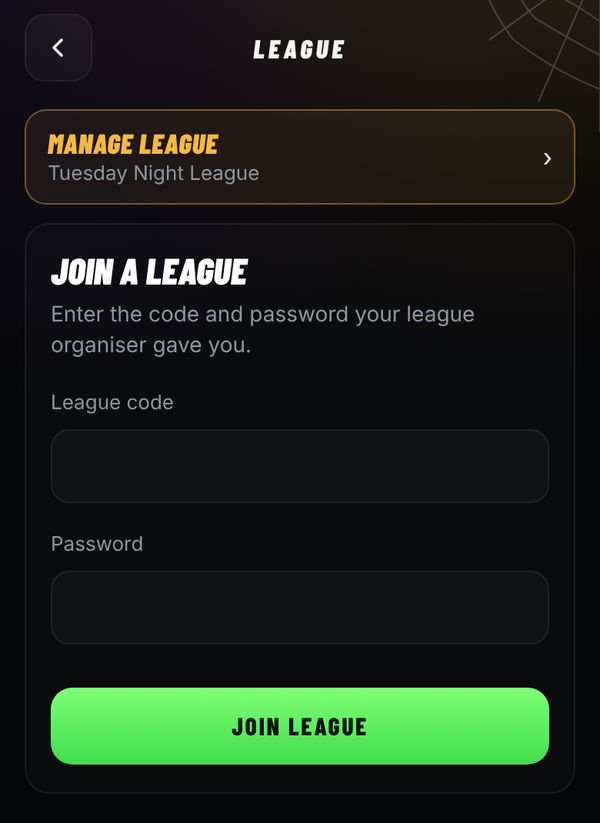
Tap League, then Manage League at the top. Everything for your league lives on that page. Only you and S7’s team see it, and every change is kept, so a mistake can always be put right.
Make Your Season And Divisions
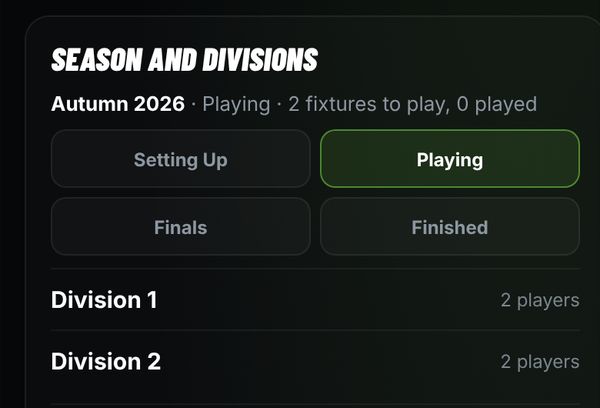
Under Season And Divisions, give the season a name (Autumn 2026, say) and tap Make Season. Then type your divisions, such as 1, 2, and tap Add Divisions.
Set The Rule Book
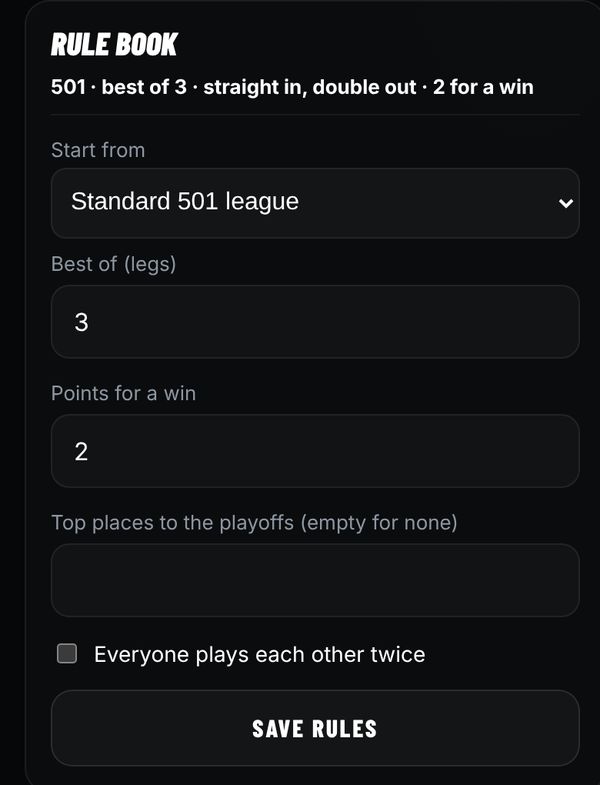
Pick a starting set, then choose the match length, points for a win, how many go into the play-offs, and whether everyone plays each other once or twice. Tap Save Rules.
Worth knowing: Decide now: the rule book locks when the season starts playing, and play-offs can only be added before then.
Make Join Codes
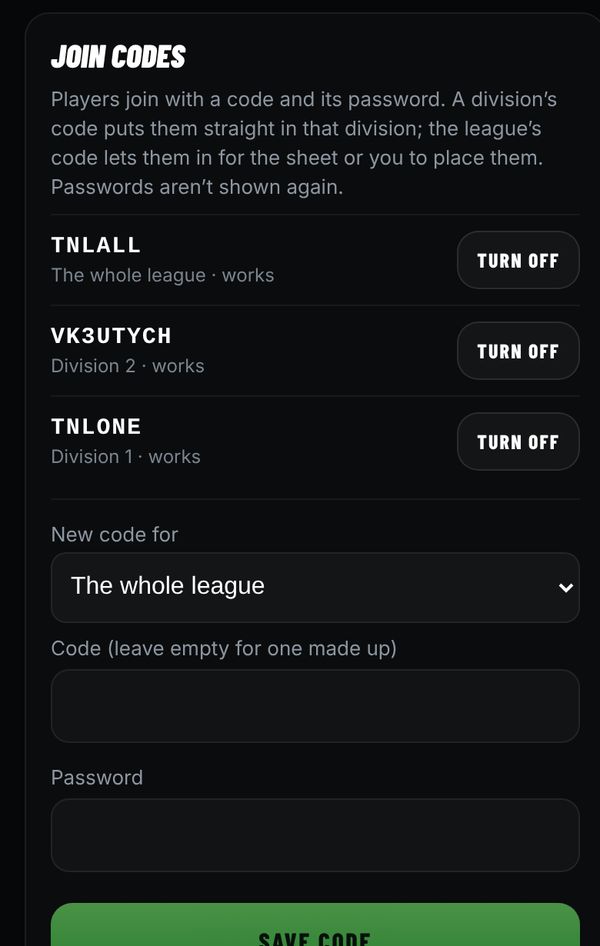
Players join with a code and a password you choose.
- A code for each division puts players straight into that division. The simplest way.
- One code for the whole league, with your spreadsheet (name, division, email) under The League’s Sheet. The app finds each player on it and places them.
Worth knowing: Write the passwords down. They aren't shown again. If one gets lost, make a new code and turn the old one off.
Make The League Yours
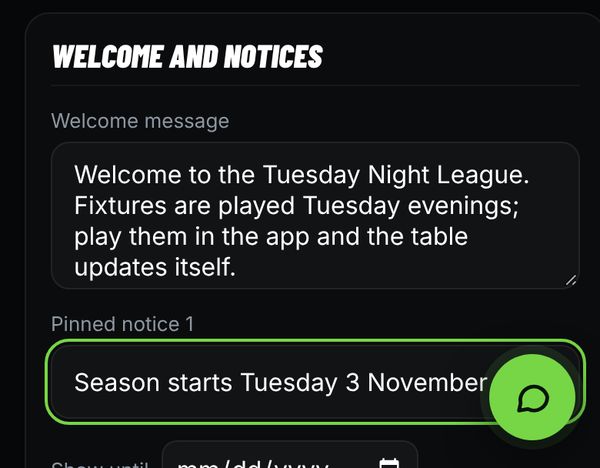
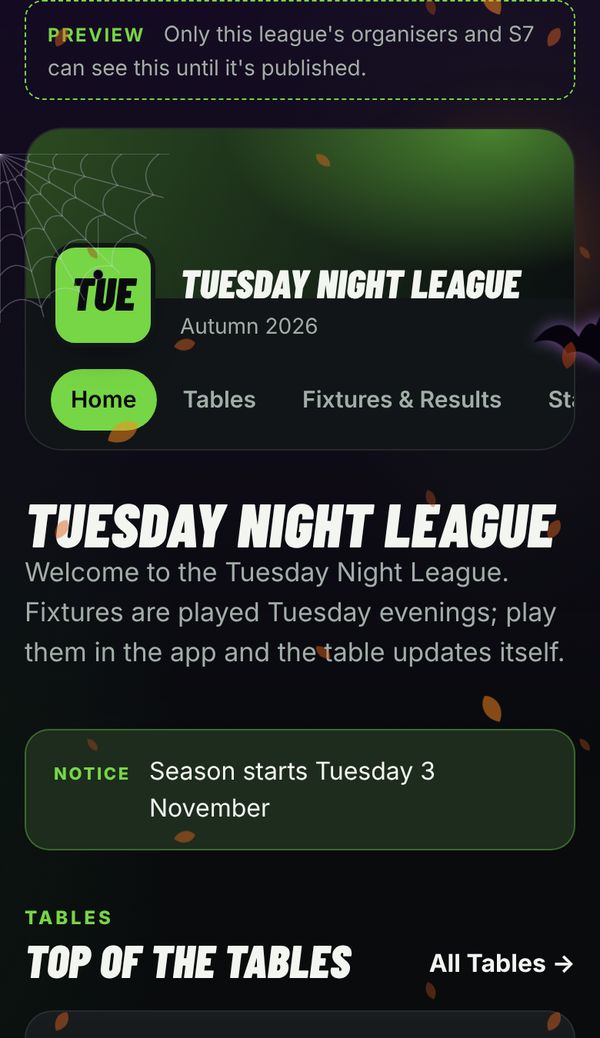
Optional, but players like it: add a logo and banner, your colour, a welcome message and pinned notices, then tap Save. See The Website shows your league’s own website, with your tables and results. S7’s team switches it on for everyone when you’re ready. Want your tables and results on your league’s own website as well? Ask us and we’ll set it up with you.
Invite Your Players
Send each division its code. A message like this works well in the league’s group chat:
We’re running the Tuesday Night League on S7 Darts this season.
1. Get the S7 Darts app.
2. Tap Continue With Email and make your account with your real name.
3. Tap League and enter the code with the password I’ve sent you.Players land straight in their division. You’ll see them arrive under Players This Season, where Move puts anyone in a different division.
Start The Season
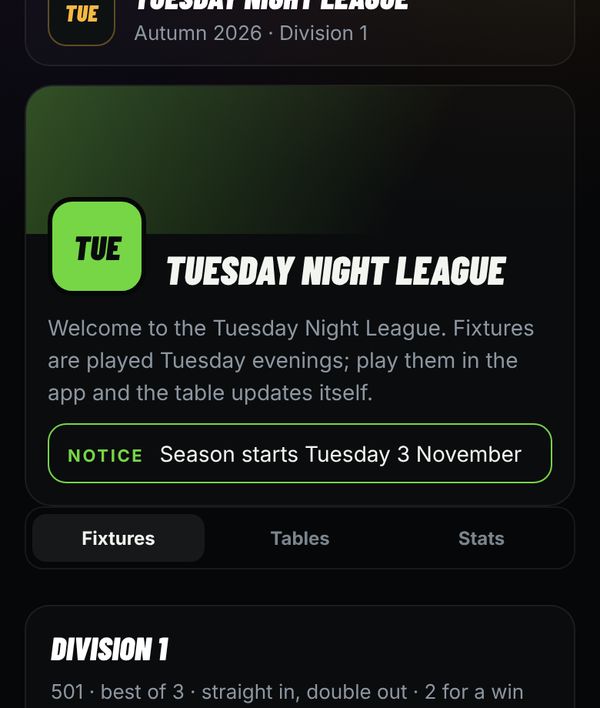
When your players are in, tap Make Fixtures: everyone in a division plays everyone else. If someone joins late, place them and tap it again; only their fixtures are added. Then tap Playing. The rule book locks at that point.
Results Look After Themselves
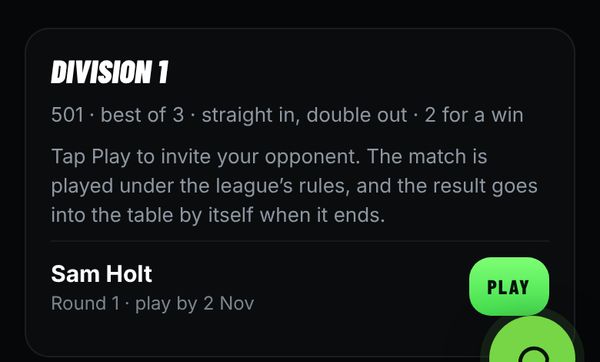
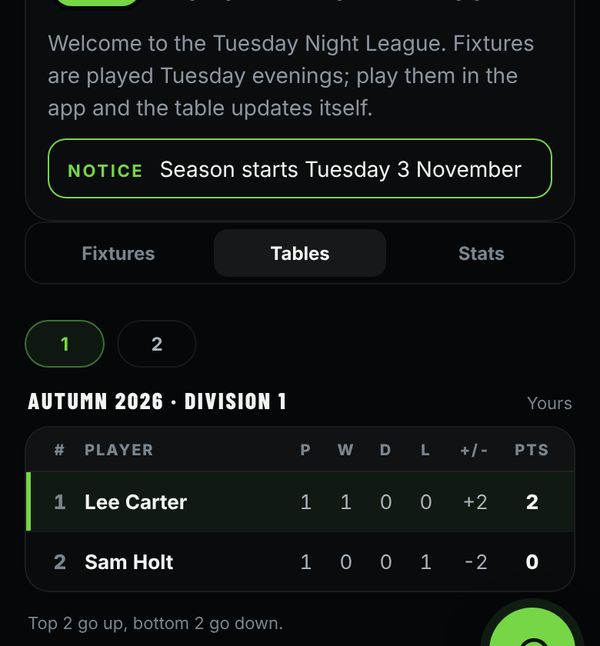
Players tap Play beside a fixture to invite their opponent. The match is played under your rules, and when it ends the result goes into the table by itself. Nothing to type, nothing to check.
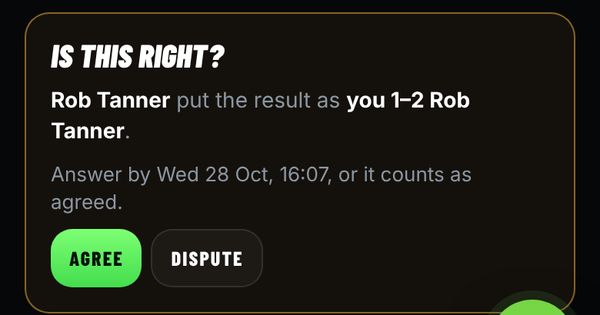
For a game played away from the app, tick Results Typed In in Manage League. One player enters the score and the other agrees. No answer within 48 hours counts as agreed.
Settle A Dispute
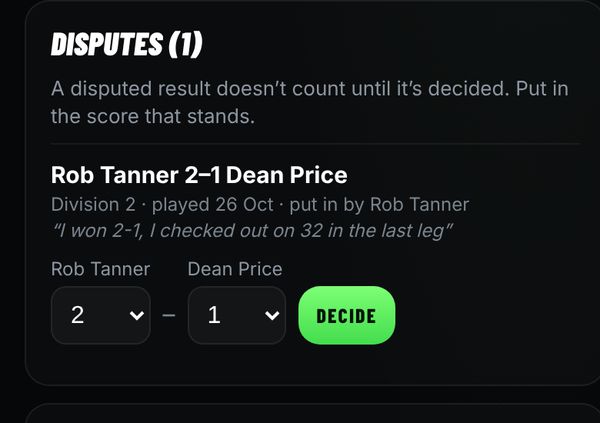
If a player disputes a result, it shows under Disputes in Manage League with what they said. Put in the score that stands and tap Decide. The table updates straight away.
Worth knowing: For now, look at Disputes when you open Manage League: the app doesn't send you a notification for them yet.
Keep Everyone Posted
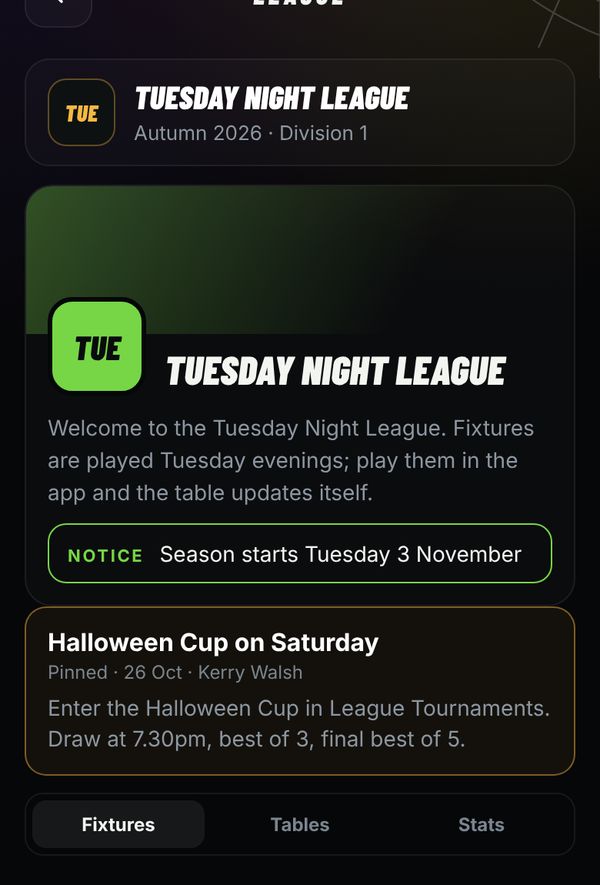
Post news under Announcements, and pin the important ones. Your players see the latest at the top of their league page and get a notification.
Run A Tournament
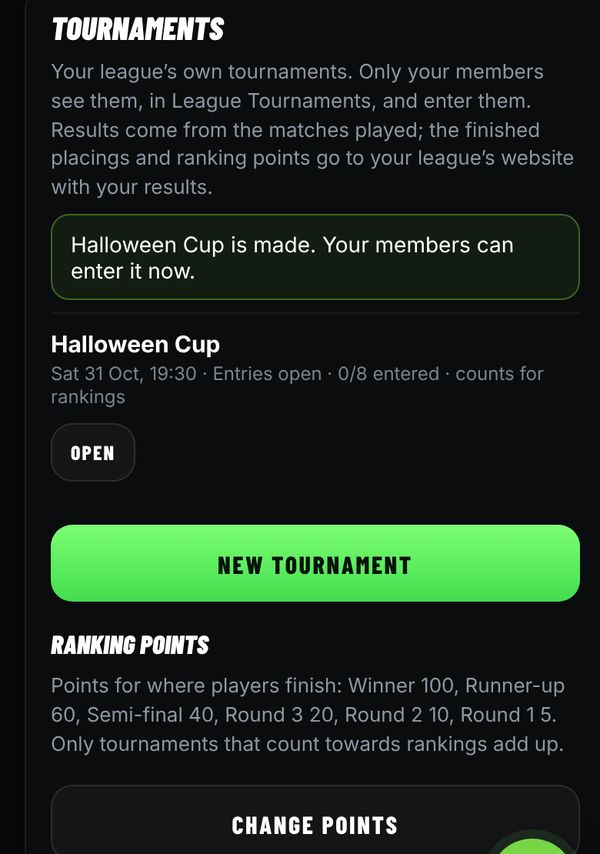
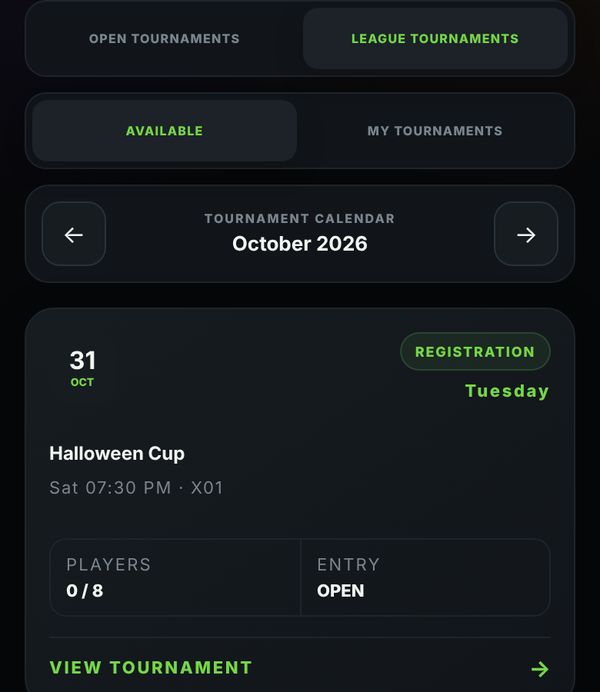
Under Tournaments, tap New Tournament: a name, a start time, how many places, knockout or groups, and how to seed it (by league position works well). Only your league’s players see it and enter it. Tap Give Points if you’d like a ranking table across your tournaments.
Stuck? Message us in the app, or on our contact page. The players in these pictures are made up.